Document and audio review for firms that work with freelancers
They mark up the PDF. The file goes everywhere stays put.
RedlinerHQ is a review portal for the PDFs and recordings in your SharePoint. Freelancers and outside reviewers mark up documents and leave timestamped notes on audio, all in the browser. Every mark is saved to your workspace, every open is in your activity log, and you decide whether they can download or print.
Free for 21 days for up to 10 reviewers, from the day your workspace is set up. No card to start.
How it works
Nothing to install. Nothing to migrate.
Your PDFs and recordings stay in the SharePoint sites they are in today. RedlinerHQ reads them, and writes markup, notes and finished copies to a workspace site or folder you choose.
Start your free trial
Tell us about your firm on the Get started form: how your people sign in and where your files are. We set up your workspace and email your admin a link. Your 21-day trial starts when setup is done.
Your admin connects your libraries
A checklist in the portal walks them through it: approve RedlinerHQ, add the SharePoint sites or folders to review from (as many as you need), choose a workspace for markup, and give people their folders.
They review in the browser
Freelancers sign in with the Microsoft account invited to your organisation, and see only the folders you gave them: PDFs to mark up, recordings to play and note.
For reviewers
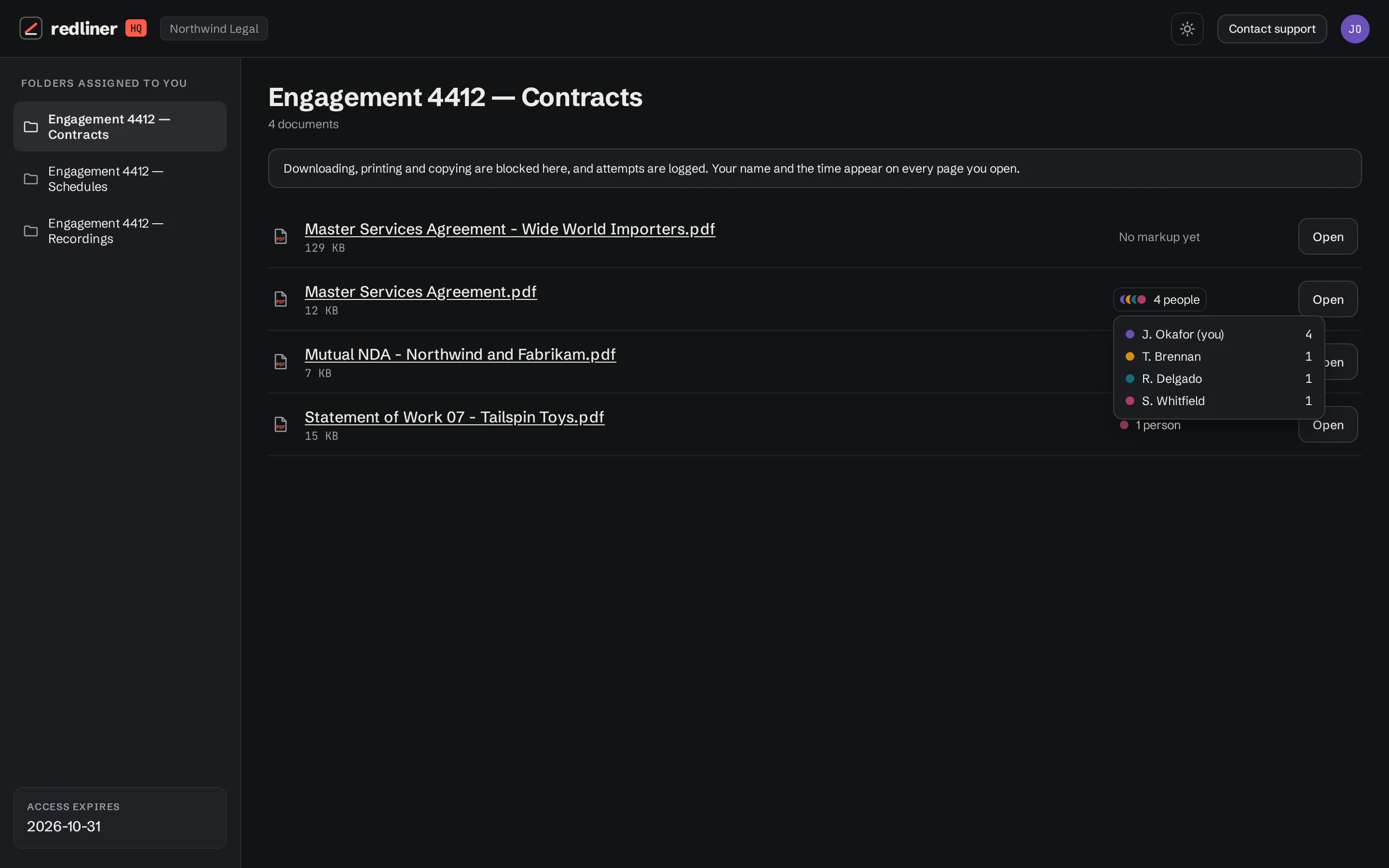
Everything assigned to them, in one list
The folders, PDFs and recordings they can open, when each last changed, and who has already marked each one up.
- Only the folders you gave them, nothing else in the library
- Access can end on a date, and people can ask for more time
The viewer
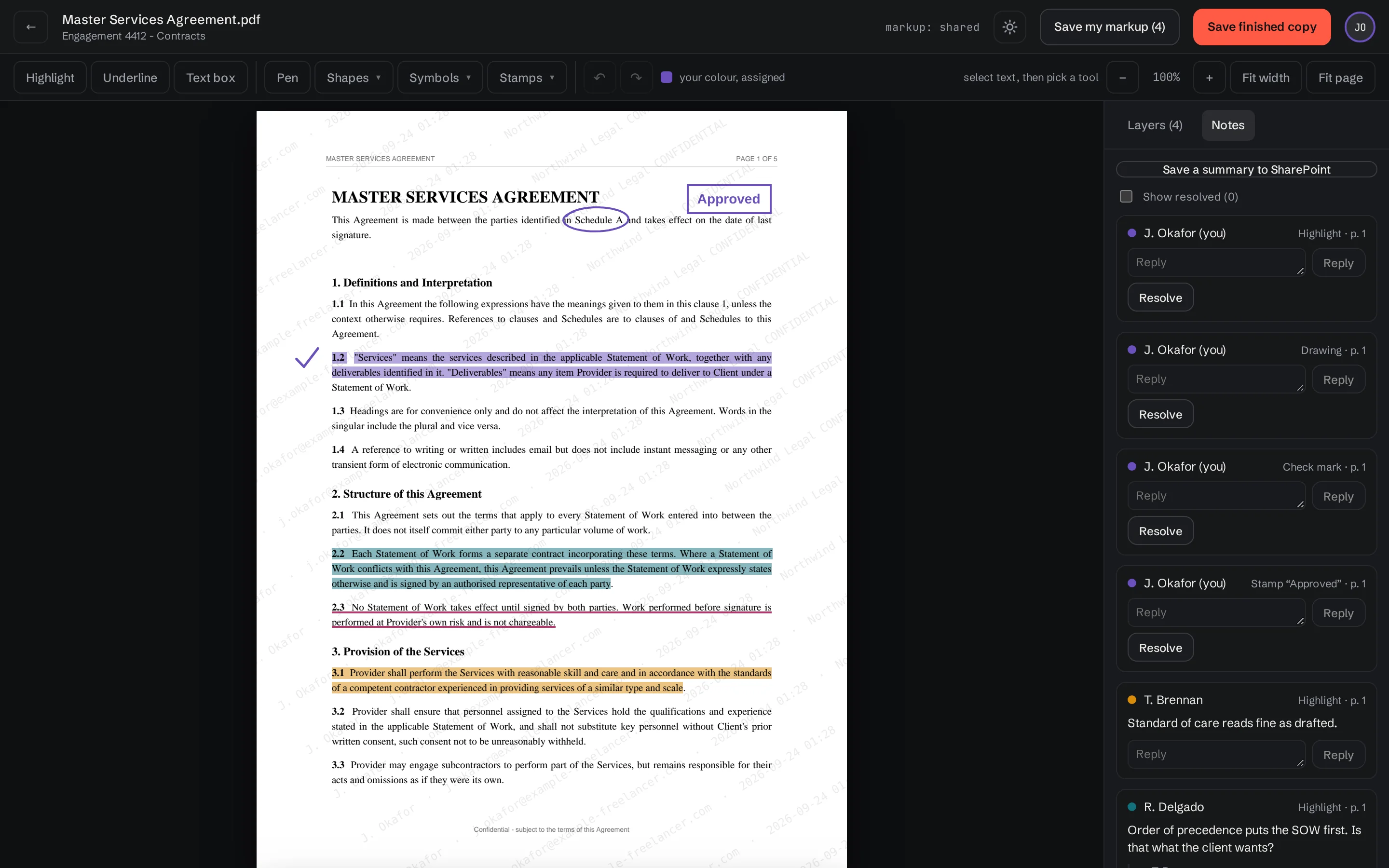
Highlight, comment, reply — on the page
A fast PDF viewer in the browser with zoom, text highlights, notes and threaded replies. Mark a comment resolved when it is dealt with.
- Markup is saved in your workspace, not stored on our servers
- A finished copy with the markup, written back beside the original
- A markup summary PDF of every comment on a document
Markup tools
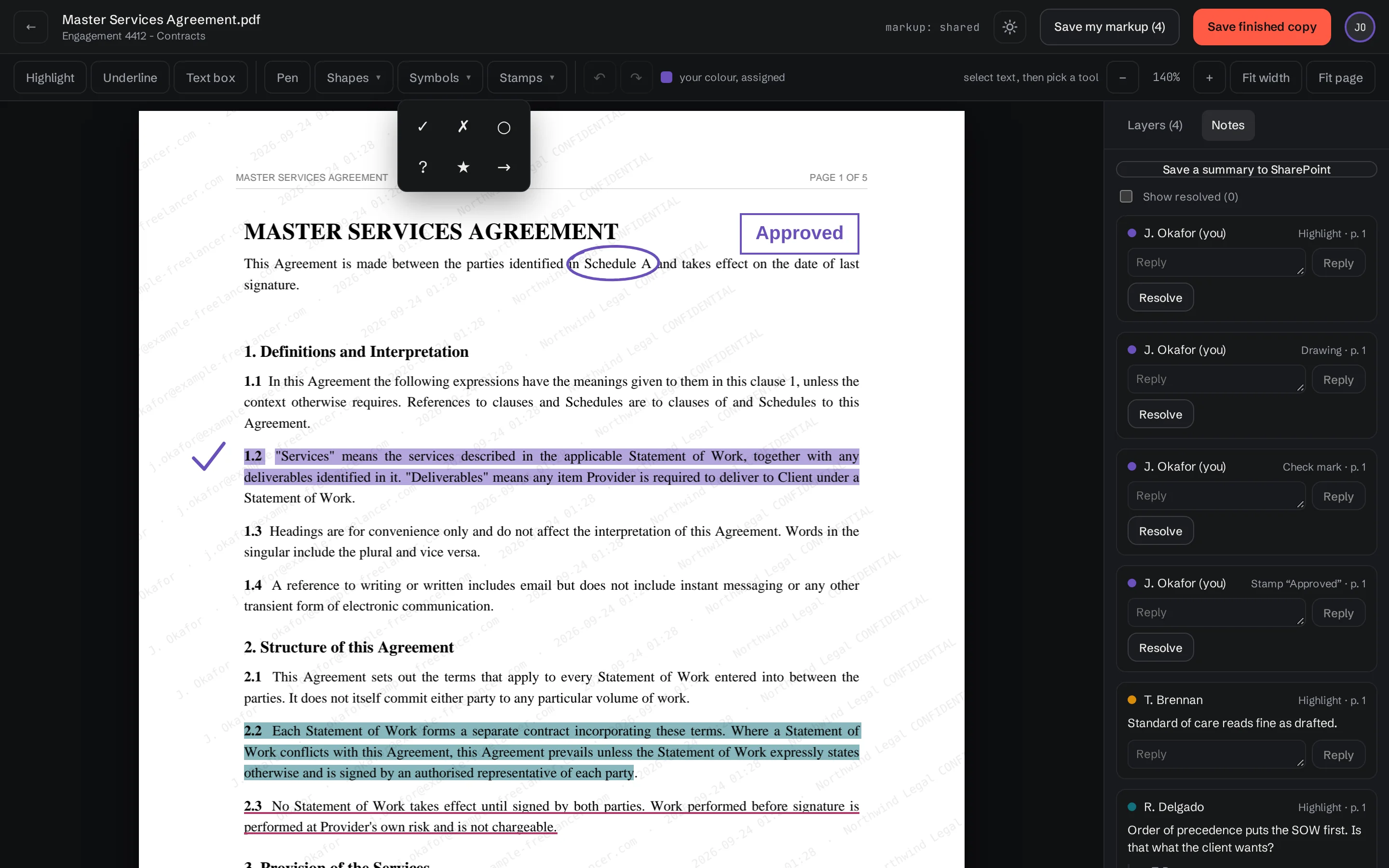
A pen, shapes, symbols and stamps
Draw freehand, box or ring a passage, point with an arrow, tick clauses off with a symbol, or stamp a page Approved, Needs changes or Initial here. Every mark is in the reviewer's own colour, with undo and redo.
- Symbols: ✓ ✗ ○ ? ★ →, placed with a click or sized with a drag
- With a mouse, a finger or a stylus
- In the finished copy and the markup summary, like every other mark
Layers
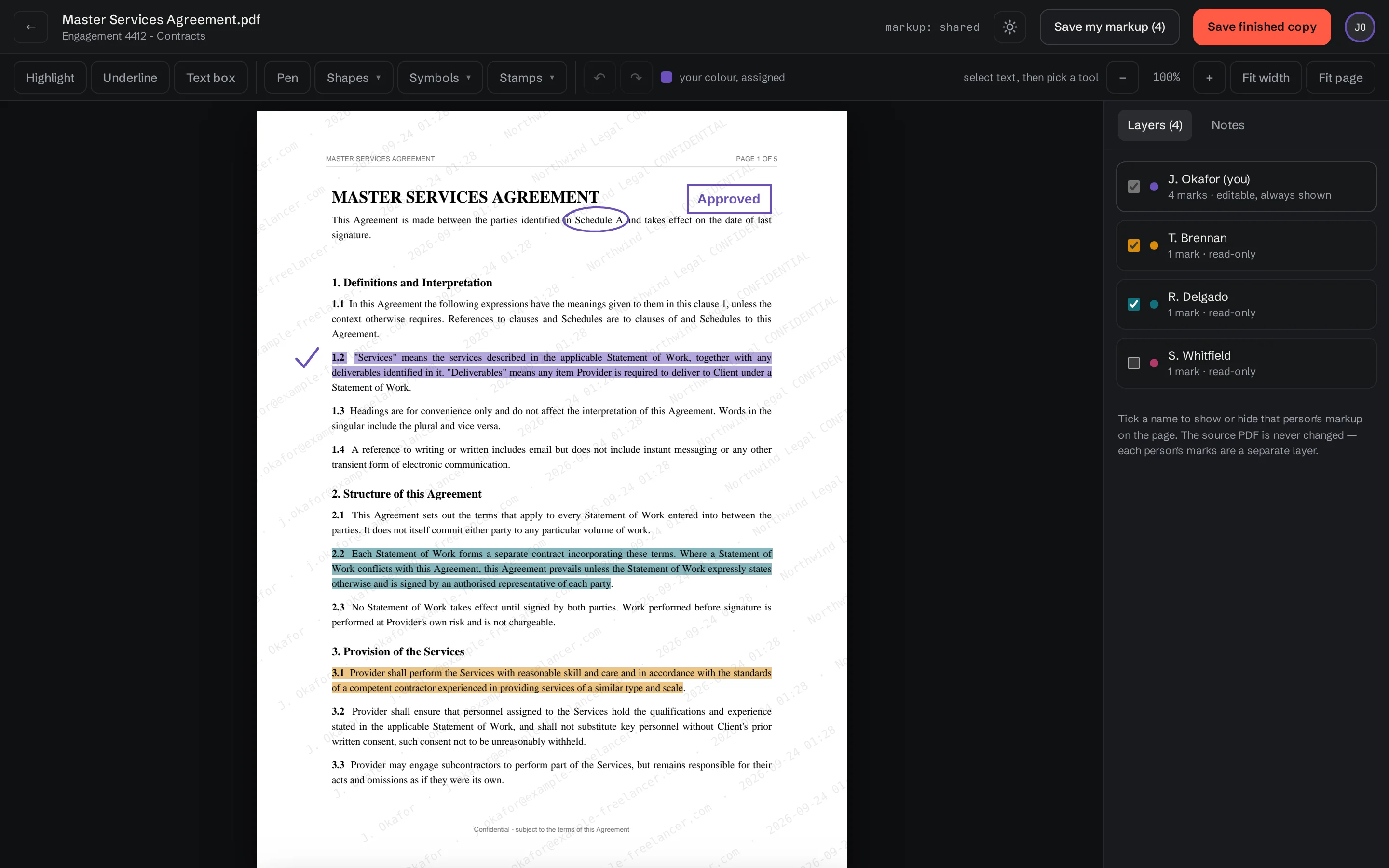
Each person's markup on its own layer
Turn reviewers on and off to compare their notes. If the document changes, earlier layers say which version they were made on.
- Shared or private markup, set per folder
- Layers made on an earlier version are labelled, not lost
Audio review
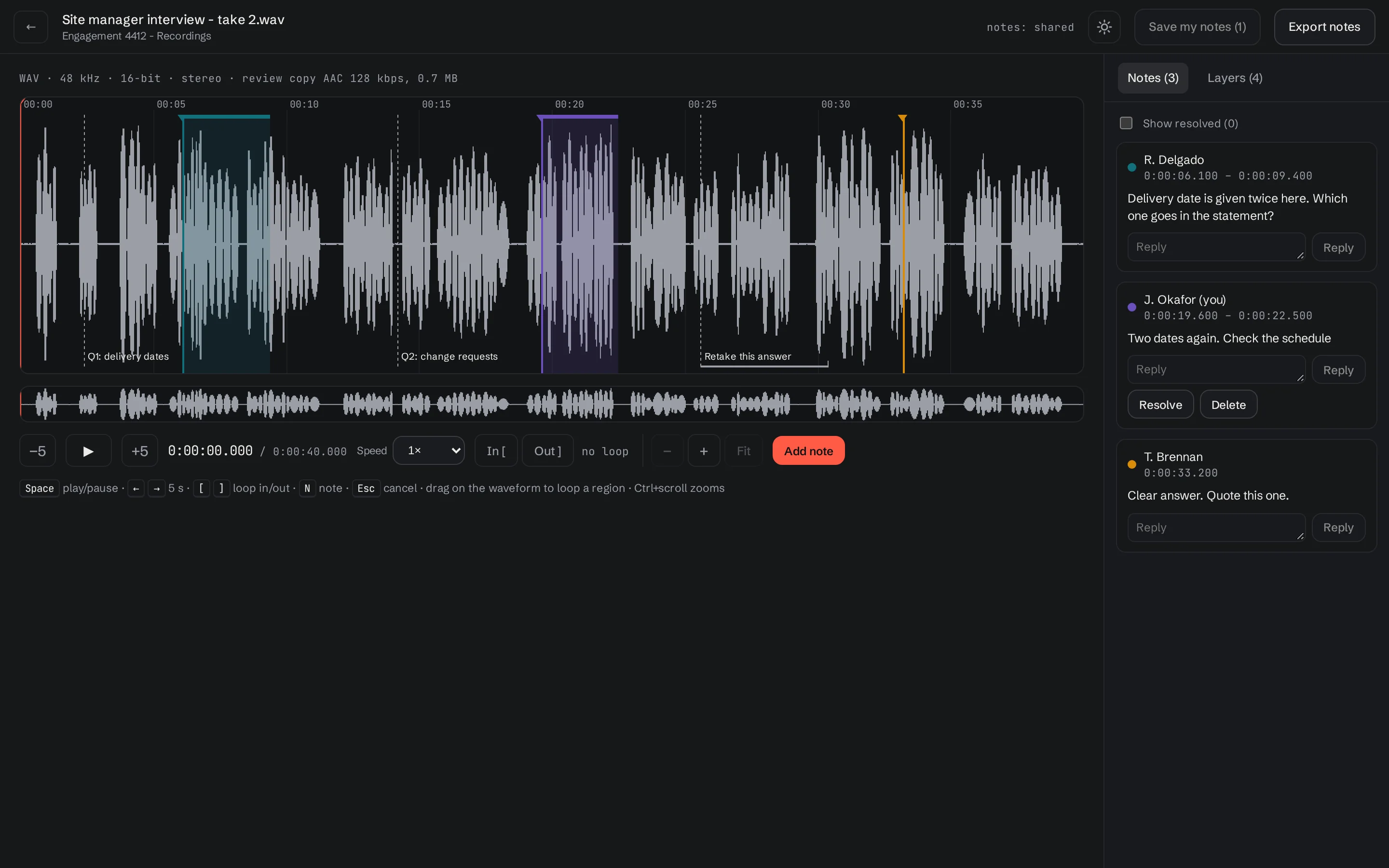
Timestamped notes on the recording
FLAC, WAV and MP3 files sit beside your PDFs and open in a player: a waveform with zoom, speed from 0.5× to 2× with the pitch kept, and an A–B loop. Press N to note the moment, or the loop. The keys are fixed, so a foot pedal that sends keys works.
- Markers from REAPER, Audition, Hindenburg and Audacity projects, subtitle files, and those saved inside WAV and FLAC files, shown on the waveform
- Notes export as CSV, SRT, WebVTT, Audacity labels or for REAPER
- The review copy is made once and kept in your workspace; playing the original is a switch you set per client
For admins
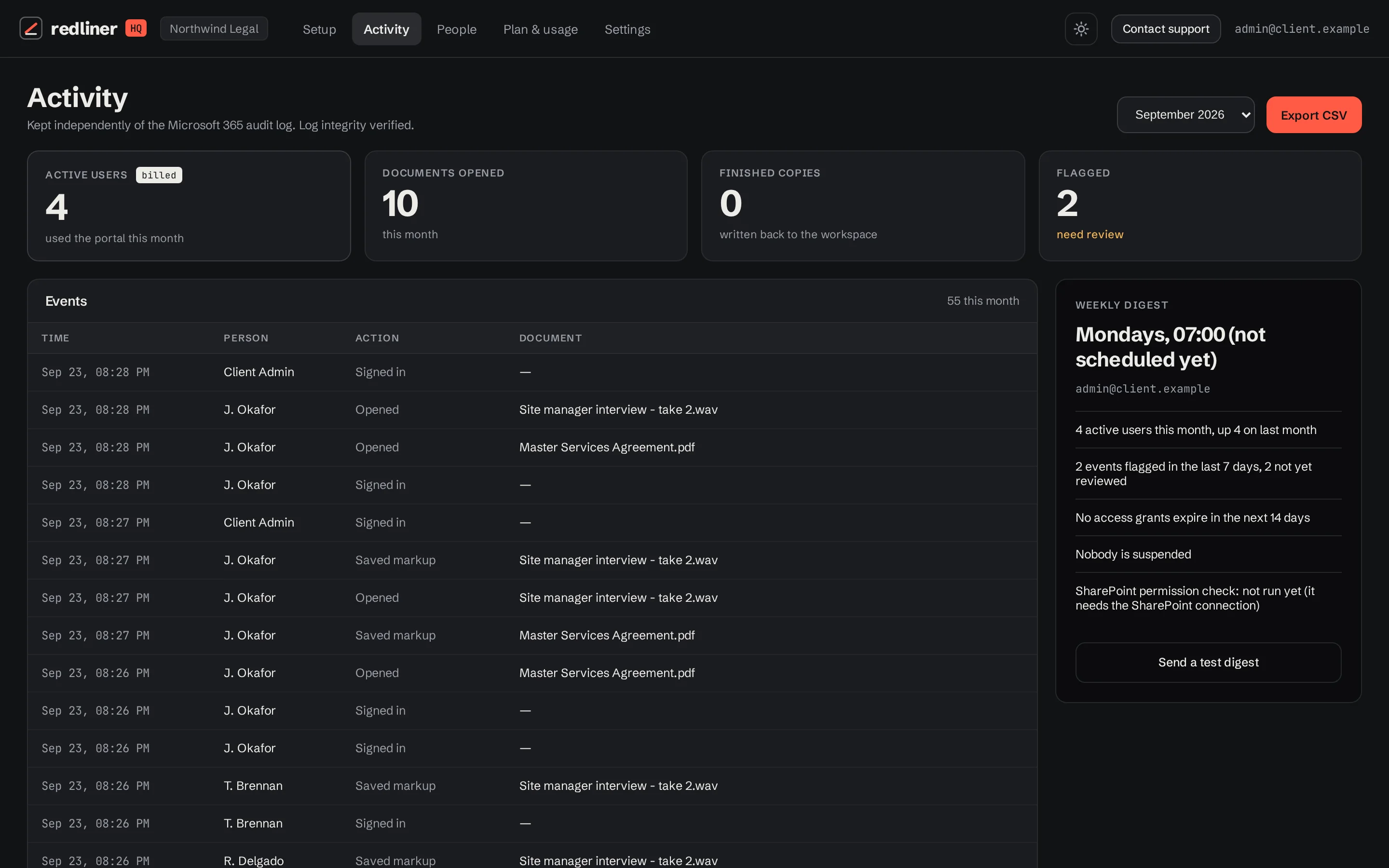
Who opened what, and when
An activity log of every sign-in, open, save and copy, kept apart from your Microsoft 365 audit log. Send it to your SIEM with a signed webhook.
- People, their folders and where each came from
- Suspend someone and their access stops on their next request
- A check for sharing links and direct grants on your library
Protection, your way
A shared markup tool, or a tightly controlled one.
Every protection is its own switch, per client. Start from Standard for everyday review, or Confidential for work that needs the strictest controls.
Try it: pick a starting point, then change any switch.
Standard: stays out of the way
Pricing
Priced by the people who use it.
One price per band of active users, monthly or yearly. Admins are free, and there is no charge per document.
Free for 21 days for up to 10 reviewers. No card to start. Larger trials on request for teams of 100 or more. Start your trial
| Active users a month | Per month |
|---|
- An active user is anyone who signs in and uses the portal in that month. People with access who don't use it that month are free.
- You move up a band only after two months in a row above it. A quiet month brings you down at once.
- Monthly bills are charged automatically: on the 2nd of each month, last month's bill goes to the card or US bank account your admin saved through Stripe, and Stripe emails a receipt. With nothing saved, we email the invoice instead.
- Yearly is paid up front for a band, at ten months' price. If you outgrow it, we'll talk before anything changes.
- Admins are free. An Admin who is also a Document Reviewer counts as one in months they review documents. Self-service setup is free; optional assisted setup is quoted separately. Prices are before tax.
FAQ
Questions firms ask first.
How does the free trial work?
It is free for 21 days, and no card is needed to start. The clock starts when your workspace goes live, when your admin has finished the setup checklist, not when you apply.
During the trial up to 10 reviewers can use it. That is a hard limit: a seat is taken the first time a reviewer signs in, or when your admin adds someone, and once all 10 are in use the next reviewer cannot sign in until your admin releases a seat. An Admin takes one only if they are also a Document Reviewer.
When the trial ends, add a payment method to carry on: the first monthly bill covers only the days after the trial. With none saved, your workspace locks: reviewers cannot sign in and your admins see a page to add one. Nothing is deleted, and adding a payment method reopens it at once.
Prefer yearly? It is paid up front, and paying during the trial ends the trial that day and starts your year.
Teams of 100 or more reviewers can ask for a larger trial on the Get started form.
Do freelancers need a new account?
No. They sign in with the Microsoft account you invited as a guest to your organisation. No new RedlinerHQ password.
Where do our documents live?
Where they are now: SharePoint sites or folders, and as many of them as you need. RedlinerHQ reads your libraries and never writes to them. Markup, notes, finished copies and the review copies of recordings go to a workspace site or folder of yours.
Launch supports Microsoft 365 sign-in and SharePoint. Google Workspace and shared drives are planned for a later release.
What does RedlinerHQ keep?
Your settings (including the names of the folders you share through RedlinerHQ) and an activity log of who did what and when, recorded by id. Not your documents or recordings, and not your markup or notes. The names and addresses of your people are kept in your own workspace; the Privacy Policy lists exactly what we hold.
Can people download or print?
You decide. Each protection is a separate switch: downloads, printing, copying text, a name watermark, hiding the page when the window is in the background, confidentiality terms, one session per person and playing the original audio. Downloads and prints are recorded in the activity log, and can carry the person's name on every page. Like any protection in a browser, these discourage and record misuse rather than prevent it: nothing stops someone photographing a screen.
Can reviewers work on audio?
Yes. FLAC, WAV and MP3 files in their folders open in a player with a waveform, speed control and a loop. They leave timestamped notes, with replies, shared or private like PDF markup, and can export them for REAPER or Audacity, or as subtitles. The first open makes a compressed review copy, kept in your workspace.
Can freelancers see each other's markup?
Only where you allow it. Markup is private by default; turn sharing on for a whole client or for a single folder.
Who counts as an active user?
Anyone who signs in and uses the portal in a given month. Someone with access who doesn't use it that month is not counted. Admins are free: an Admin counts only if they are also a Document Reviewer, and only in a month they open, mark up, export or play documents. Managing people, settings and activity never counts.
What happens if we stop?
We delete what we hold for you: your settings and your activity log. Your documents, recordings, markup and notes were in your own storage all along, so there is nothing to export.
Where do I sign in?
At the address your firm sent you, which looks like app.redlinerhq.app/c/…. Each firm has its own.
Contact
See it with your own files.
Questions before you start? Send them here and we'll reply by email. Ready to set up? Start a 21-day free trial: the form takes about five minutes.
Or email us directly:
contact@redlinerhq.app