Administrator / 6 min read
Assign folders and people
Use Documents & access to choose folders, set roles and give people access without typing storage IDs.
Updated 2 October 2026
1. Choose review folders
- Open Settings → Documents & access.
- Check that the originals location and workspace are connected and reachable.
- Choose Choose folders. Browse the source library, select the folders you want, then add them.
- Give each folder a clear display name and choose its default access level.
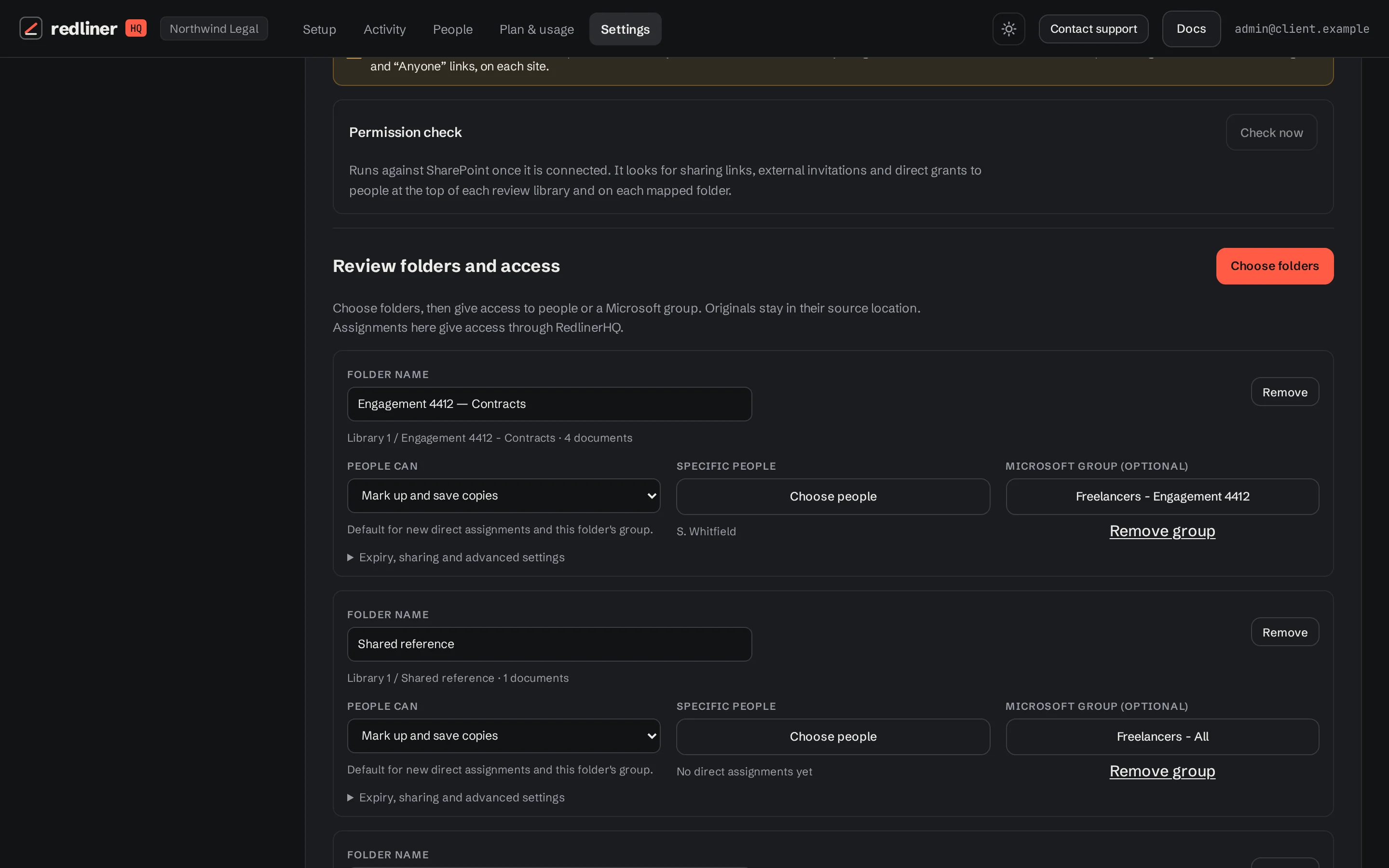
Folder choices do not move or change source files. Save your folder changes, or continue to Choose people: saving access also saves pending folder choices.
2. Give someone access
- Add or import the person on People if they are not listed. Use the email they will sign in with.
- On the folder card choose Choose people.
- Select the people to assign, choose their access level, then choose Save access.
- Send them your organisation’s normal sign-in address from Setup.
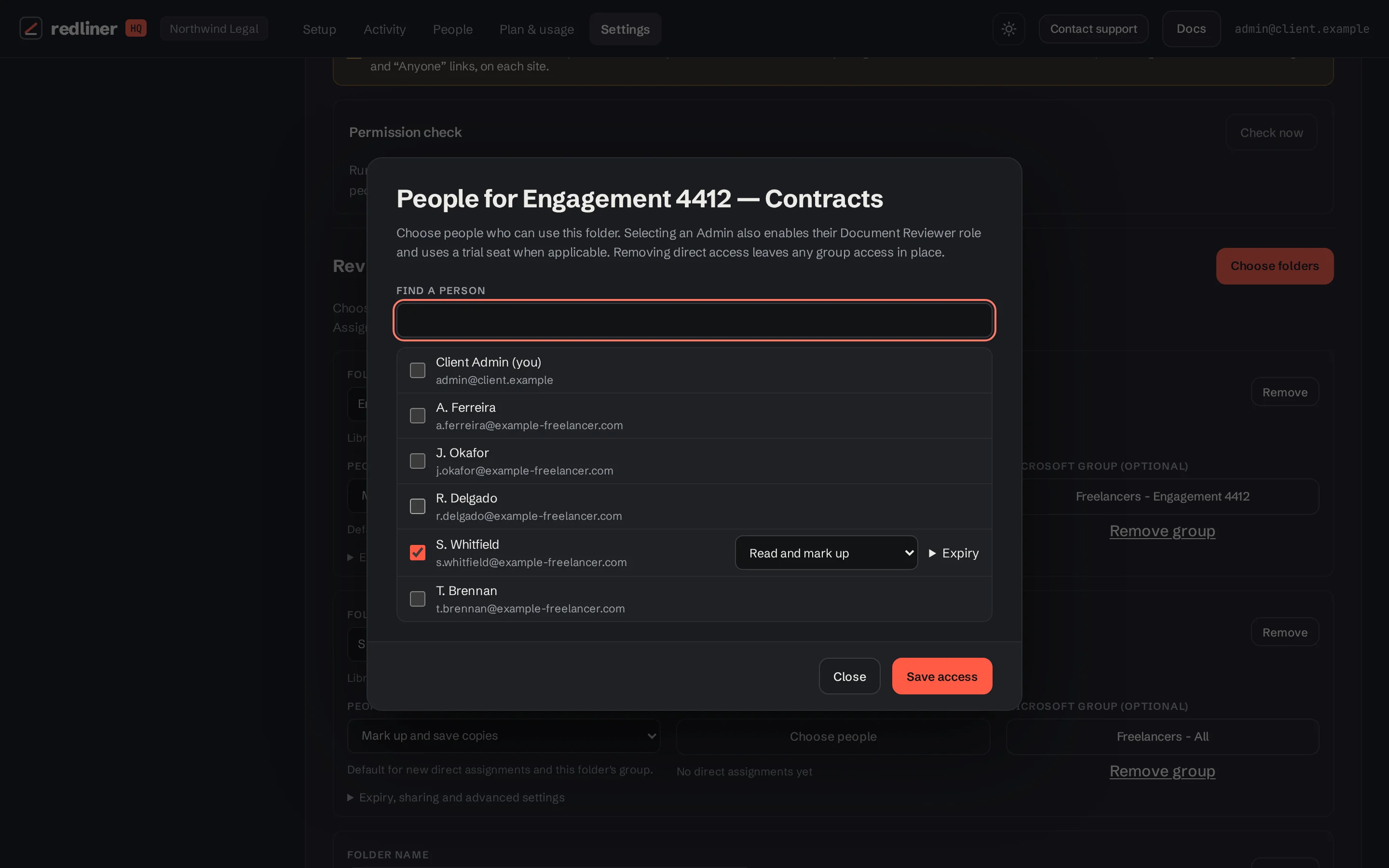
Selecting an administrator for folder access also enables their Document Reviewer role, subject to available trial seats. Their Documents tab then appears. Their other folder assignments are kept.
3. Choose the right role
| Role | Allows |
|---|---|
| Read only | Open and read or listen; no review editing or exports. |
| Read and mark up | Read, add review markup or notes, and save the review layer. |
| Mark up and save copies | Review plus permitted exports and copies. Client policy can still disable download or print. |
The default role on a folder applies to its Microsoft group and new direct assignments. Existing direct assignments have their own role; adjust them in Choose people or the person’s Access dialog.
Groups, expiry and removal
Microsoft portals can use a group for a folder as well as direct assignments. Google reviewers are assigned directly. Advanced folder controls include expiry and whether reviews are shared. Check these when an engagement ends or a colleague’s layer is missing.
Removing direct access leaves access through a mapped Microsoft group in place. Review both paths when removing a person’s access. People → Suspend stops that person’s portal access; storage permissions outside RedlinerHQ must be managed in Microsoft or Google.
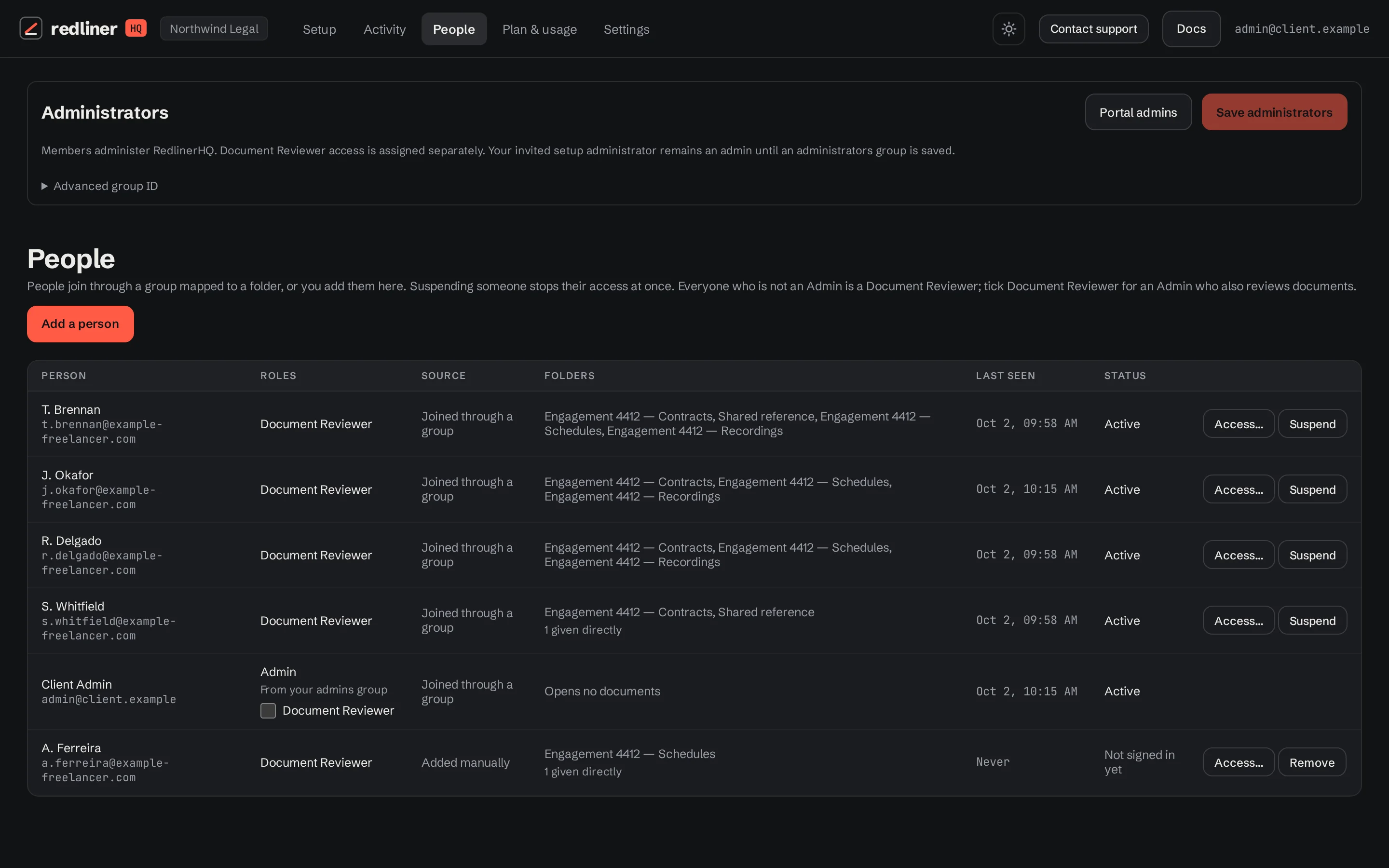
Administrator groups are managed in People. Being an administrator and being a document reviewer are separate roles.
Keep going with another guide, or return to your review.
Browse all docs