Reviewer / 6 min read
Review audio
Listen to FLAC, WAV or MP3, loop a region, add timestamped notes and use markers from editing tools.
Updated 2 October 2026
Open a recording
Open a supported FLAC, WAV or MP3 file from an assigned folder. The first open prepares a compressed AAC .m4a review copy and waveform, kept in the workspace. A preparation screen may appear while this happens.
The review copy is for faster listening and smaller transfers. The source audio stays unchanged. Where allowed, the player can switch to the original; whether it plays depends on your browser’s support for that format.
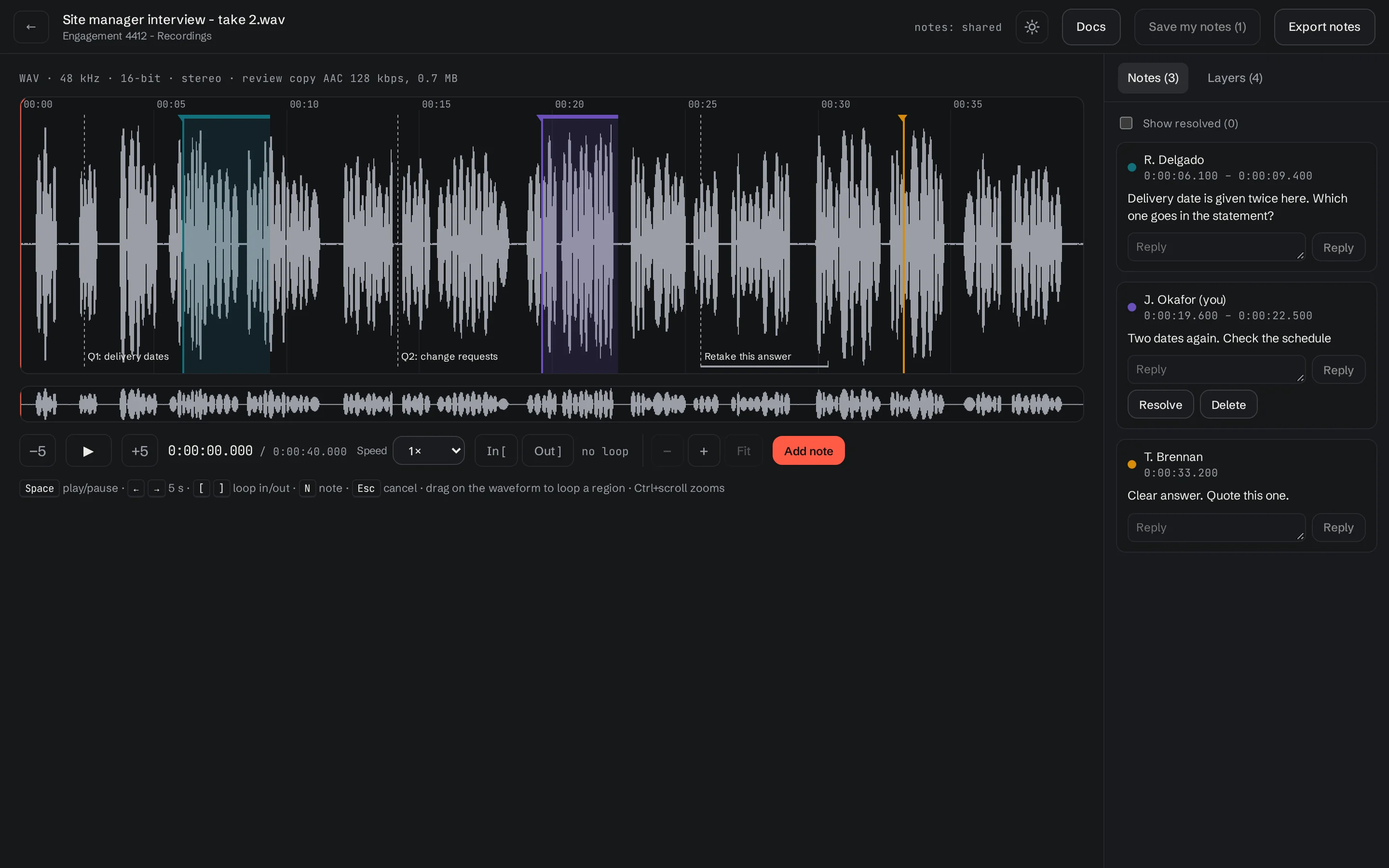
A review copy preserves the recording’s timeline for notes, but compression reduces audio fidelity. Use the original for final editing or quality-critical work. See review copy versus original.
Listen and loop
- Choose Play. Adjust Speed if helpful.
- Click the waveform to move to a time.
- Drag across the waveform to select a loop region, or use the loop-in and loop-out controls.
- Play the region again while reviewing it.
- Clear the loop when you want to continue through the recording.
The overview strip helps you navigate a long file. Zoom the waveform to make short regions easier to select.
Add and save notes
- Pause at a time, or select a loop region.
- Choose Add note, type the feedback, then add it.
- A point note records a timestamp; a region note records a start and end.
- Choose Save my notes and wait for the saved confirmation.
- Reopen the recording to check your saved notes.
Use replies and resolution controls to follow up. When the folder shares reviews, colleagues’ notes appear in their own colours and layers.
Keyboard controls
| Key | Action |
|---|---|
| Space | Play or pause |
| ← / → | Back or forward five seconds |
| [ / ] | Set loop in or loop out |
| N | Add a note at the playhead or over the loop |
| Esc | Cancel the note or clear the loop |
The visible buttons provide the same core actions on tablets.
Markers from other tools
Supported project, label and subtitle files beside the recording, and supported markers stored inside WAV or FLAC, can supply read-only timeline markers. The player recognises supported material from REAPER, Audition, Hindenburg and Audacity, along with subtitle files.
These markers provide context for review. Opening them in RedlinerHQ does not recreate an editor’s full multitrack session or apply its effects. Unsupported or unrelated source files may be skipped. Keep linked project files and media names together if you expect their markers to line up.
Use Export notes when handing review feedback back to an editor. The next guide explains the formats and how to reopen them.
Keep going with another guide, or return to your review.
Browse all docs