Reviewer / 4 min read
Your first review
Sign in to the right portal, open an assigned folder, and save your first PDF mark or audio note.
Updated 2 October 2026
1. Use your client’s sign-in address
Open the portal address your client sent you. Each client has its own portal and chooses Microsoft or Google for sign-in. Use the account your administrator assigned, including the exact email address for a manually added person.
A Microsoft portal shows Continue with Microsoft; a Google portal shows the Google option. You do not choose a different provider on the same portal. If you expected Google, ask your client which portal and account to use.
Accept your client’s confidentiality terms if prompted. These are separate from the RedlinerHQ business agreement.
2. Open an assigned folder
In Documents, choose a folder, then open the file by name. You only see folders assigned to you. The list includes PDFs and supported audio files; it can show who has saved markup.
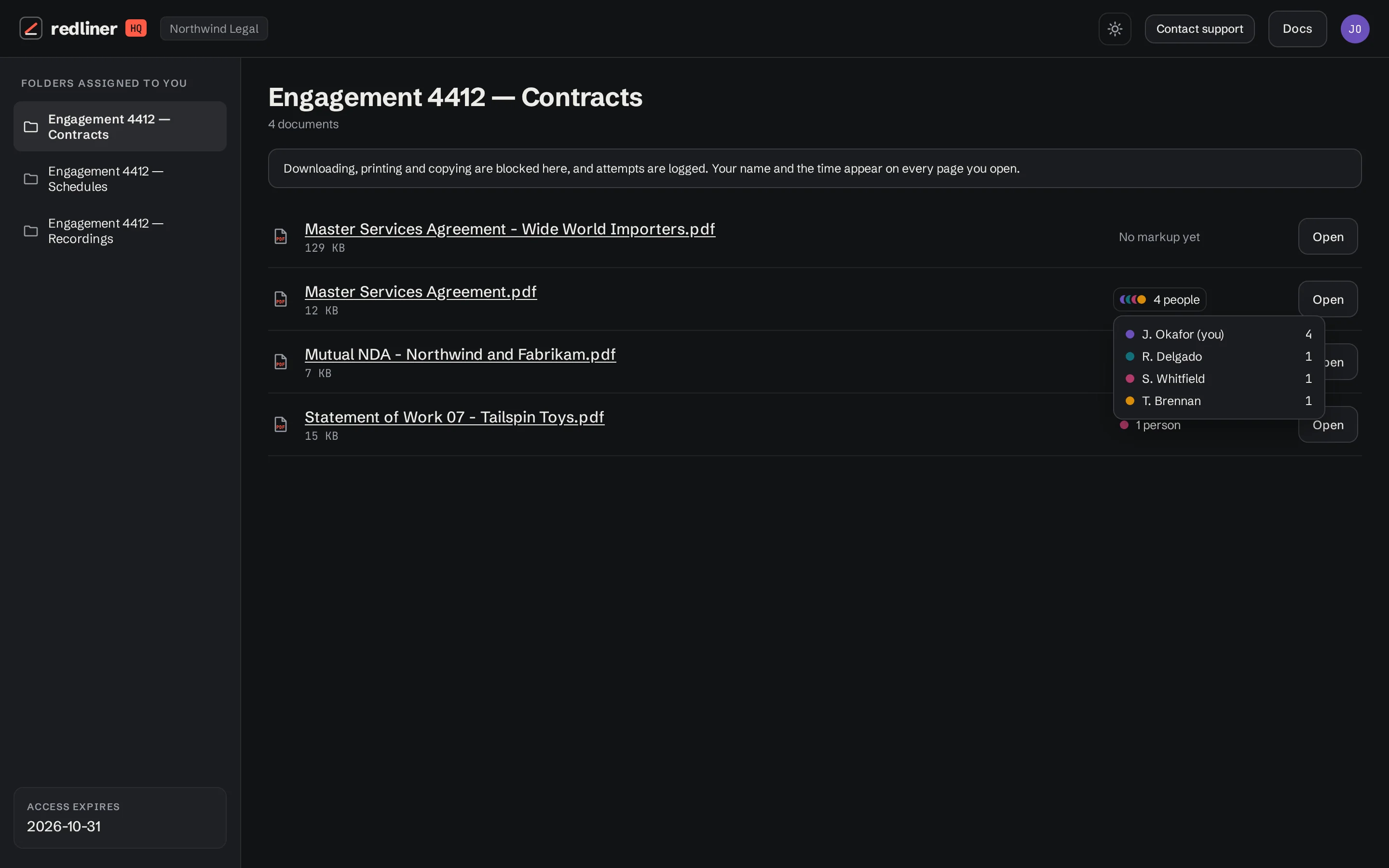
If the folder is missing, contact your client’s administrator. Knowing a file’s address does not grant access through the portal.
3. Review and save
- For a PDF, select text and choose Highlight, or pick a drawing tool and mark the page.
- Choose Save my markup and wait for the saved confirmation.
- For audio, play the recording, choose Add note, write your note and add it. Then choose Save my notes.
- Use Back to documents, reopen the file, and check your saved work.
Continue with Review PDFs or Review audio for the full workflow.
4. Check your access level
Your administrator chooses access per folder. Read only allows viewing. Read and mark up adds review tools. Mark up and save copies also allows exports, subject to the client’s protection settings. A button may be absent because your role or the client’s policy does not allow that action.
Administrators who also review documents need the Document Reviewer role and assigned folders. Administrator access alone does not give a Documents tab.
Keep going with another guide, or return to your review.
Browse all docs