Reviewer / 4 min read
Layers, comments and replies
Compare reviewers, keep review rounds separate, discuss marks and understand shared or private review.
Updated 2 October 2026
Show the layers you need
Open the Layers panel. Tick a layer to show it; untick it to hide it. PDF layers include a name, author, latest or previous status, and creation and modification details. Your latest PDF layer opens by default.
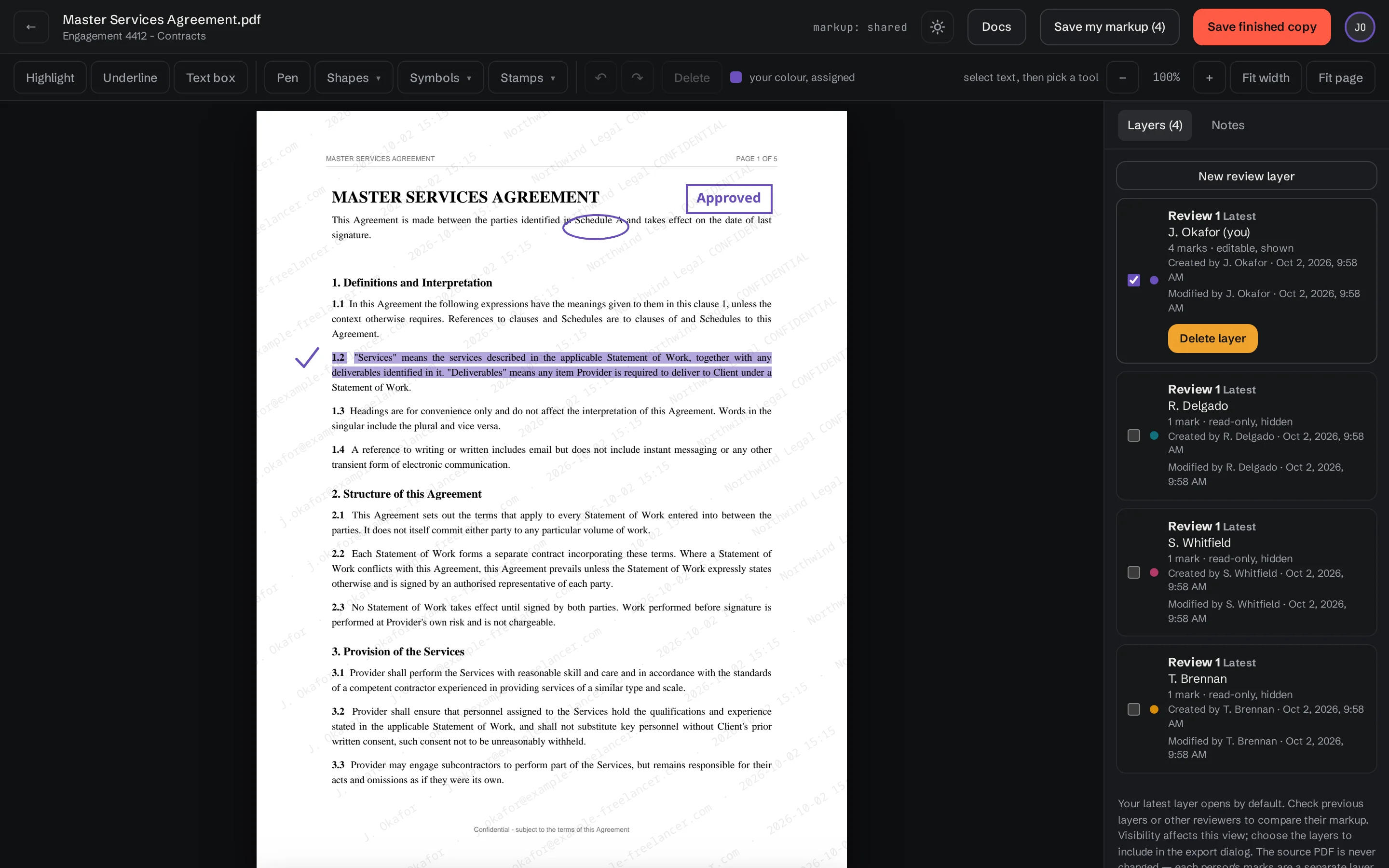
You can edit your active PDF layer. Other reviewers’ markup is read-only. Hiding a layer does not delete it or remove it from storage.
Start another PDF review round
- Save your current markup.
- In the PDF Layers panel, choose New review layer.
- Give it a useful name, such as “Second pass”, and create it.
- Continue marking up in the new layer and save.
Use previous layers to compare rounds. If Delete layer is available for your saved layer, read the confirmation before deleting it; deletion is different from hiding it. Named review rounds apply to PDF markup; audio notes use a reviewer’s audio layer.
Discuss and resolve feedback
The Notes panel gathers review comments. For PDFs, select a mark to work with its comment. For audio, a note points to a timestamp or a selected region. Add a reply when you need a discussion attached to the feedback.
Use the available Resolve control when the feedback is dealt with. Show resolved brings resolved notes back into view. Resolving a note records its status; it does not edit the original PDF or recording.
Save new or edited markup and audio notes before leaving. Replies and resolution controls save their changes when used; watch for any error message.
Shared and private review
Your administrator sets whether a folder shares reviews. In a shared folder, permitted colleagues’ layers can appear. In a private folder, colleagues’ layers are not shown to other reviewers. Ask the administrator if you need a different review arrangement.
Read Downloads and exports before sending a finished review to someone else.
Keep going with another guide, or return to your review.
Browse all docs