Reviewer / 5 min read
Review PDFs
Highlight, draw, add text and comments, save your markup, and reopen it for another review.
Updated 2 October 2026
Open and navigate
Choose a PDF from an assigned folder. Use zoom, Fit width or Fit page to get a comfortable view. Use the Notes panel to jump to a note’s page. Your assigned colour identifies your markup.
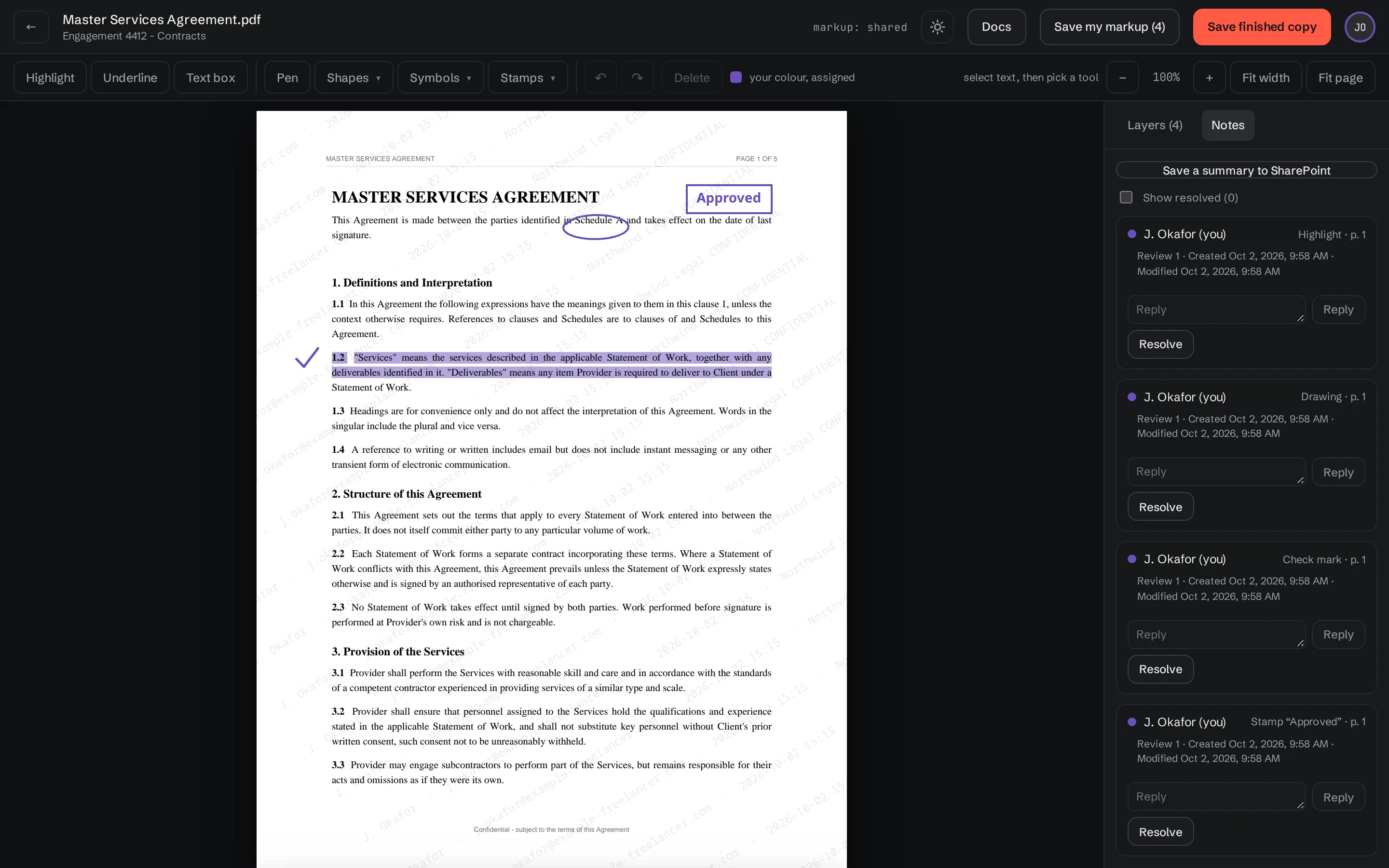
A read-only folder allows viewing, but the editing tools are unavailable. Ask your administrator for the access level needed for your work.
Choose a markup tool
- Highlight / Underline: select text on the page, then use the tool. Scanned pages without selectable text may need pen or shapes instead.
- Text box: choose the tool, click the page and enter text.
- Pen: draw with your mouse, finger or pen.
- Shapes: choose a shape and drag on the page.
- Symbols / Stamps: choose an item and place it on the page.
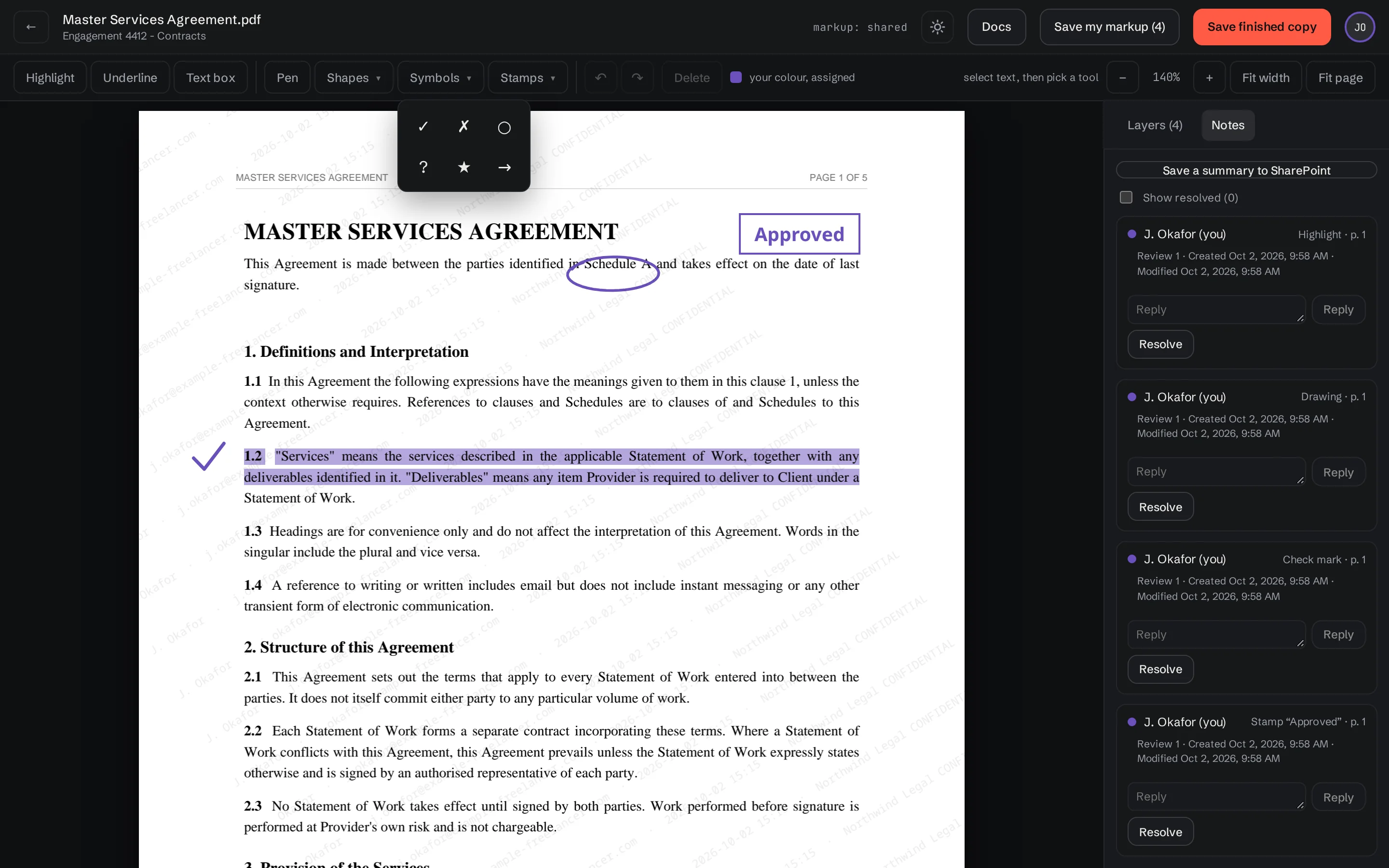
Press Esc to stop placing a drawing or stamp. On touch devices, leave the drawing tool before trying to scroll through the page. A stamp such as Approved is a review mark; it does not sign a document.
Save and check your work
- Choose Save my markup.
- Wait for the saved confirmation.
- Use Back to documents, then reopen the PDF.
- Check that your latest layer contains the saved marks.
Use Layers and comments to compare reviews, add replies or start another review layer. Use Downloads and exports to choose editable annotations or a flattened PDF.
When the source PDF changes
Markup tied to an older source version can be labelled made on an earlier version. It may no longer line up with the current text. Check those marks before including them in a finished copy. Earlier-version markup is excluded from export by default.
If you are told a layer changed elsewhere, follow the message and reload the latest saved review before continuing. Keep any unsaved comment text separately if needed; do not repeatedly overwrite another session’s changes.
Keep going with another guide, or return to your review.
Browse all docs